
How to read Gmail's Show original
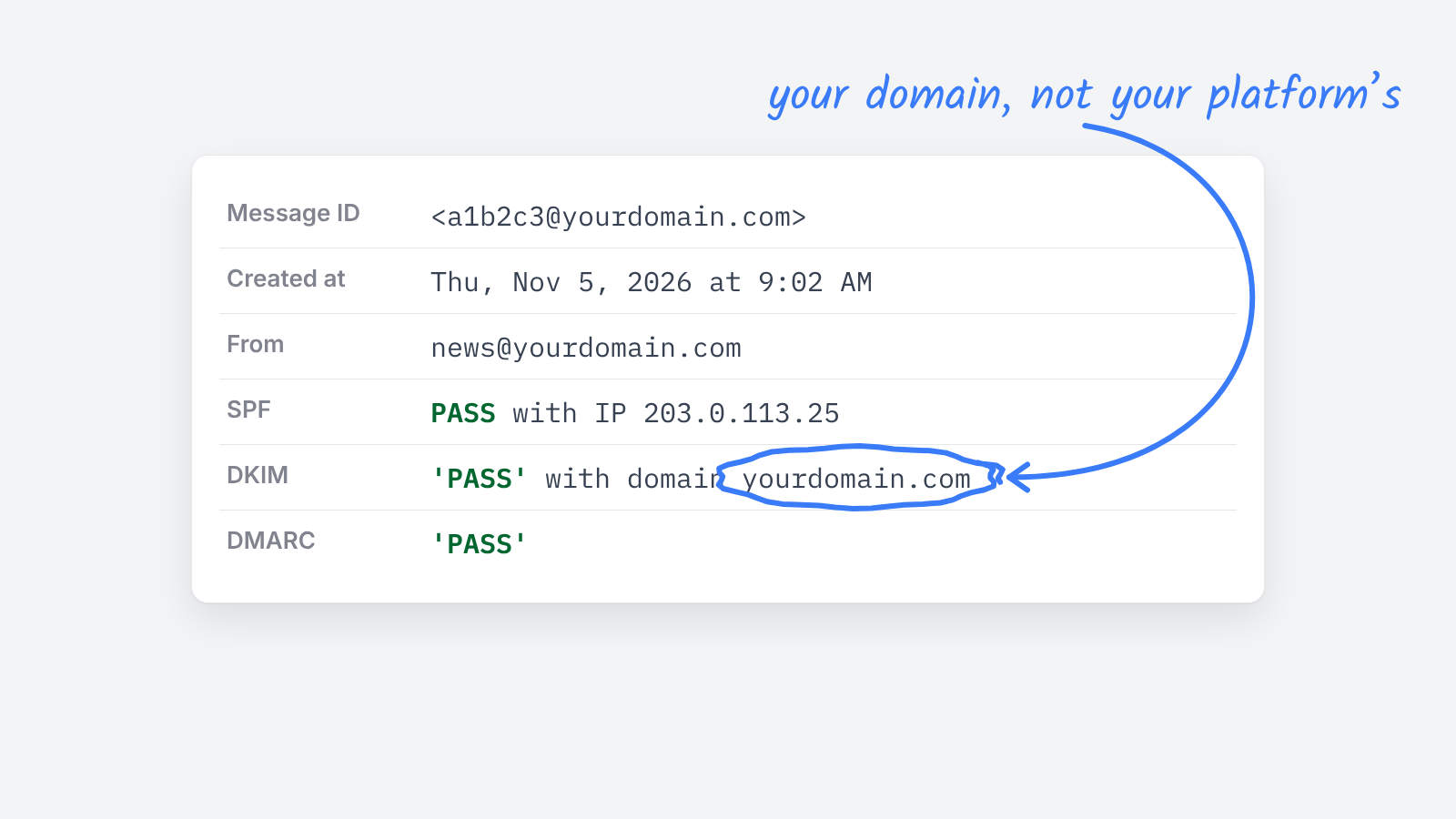
Show original is Gmail’s view of a message’s raw source. The table at the top answers the question most senders have: did this message pass SPF, DKIM and DMARC? To open it, open the message in Gmail on the web, click the three-dot menu next to Reply and choose Show original.
Want a second opinion on what it says? Paste the whole page into the free DKIM checker, which reads the selector from the signature and checks your domain’s records.
How do you open Show original in Gmail
- Open the message in Gmail on a computer. The phone apps don’t offer Show original.
- Click the three-dot menu next to the Reply button.
- Choose Show original. It opens in a new tab.
- To share it, use Copy to clipboard or Download original at the top.
Use a copy of your newsletter that you received as a reader, not the one in your Sent folder.
What does the summary table mean
| Line | Example | What it tells you |
|---|---|---|
| Message ID | <abc123@mail.yourdomain.com> |
The message’s unique ID. Useful when you ask your platform to trace a send. |
| Created at | The date and time | When the sending server created the message. |
| From | Your publication’s name and address | The From address DMARC checks against. |
| SPF | PASS with an IP address |
The sending server was listed in your SPF record. |
| DKIM | PASS with domain yourdomain.com |
The signature checked out. Make sure the domain is yours, not your platform’s. |
| DMARC | PASS |
SPF or DKIM passed and lined up with your From domain. |
What should you look for below the table
- Authentication-Results shows the receiving server’s full verdict on each check.
- DKIM-Signature holds
s=, your selector, andd=, the signing domain. - List-Unsubscribe and List-Unsubscribe-Post are the headers behind Gmail’s unsubscribe button. Bulk senders need both.
- Received lines trace the path the message took, newest first.
What should you do when SPF, DKIM or DMARC fails
| Result | Likely cause | What to do |
|---|---|---|
| SPF fail or softfail | The server that sent the message isn’t in your SPF record | Add your platform’s include to your one SPF record |
| DKIM fail | The published key doesn’t match, or the message changed on the way | Re-copy the key from your platform. Check for list software adding footers. |
| DKIM pass, wrong domain | Your platform signs with its own domain | Set up DKIM on your own domain in the platform’s settings |
| DMARC fail | Neither SPF nor DKIM lined up with your From domain | Fix alignment before you tighten your DMARC policy |
For what each record does, see what is DKIM. To see how an issue looks in Gmail and Outlook before it goes out, see how to test a newsletter in Gmail and Outlook.